Site Settings
This section covers the configuration options and features available under Site Settings. Use these settings to manage global aspects of your site.
General
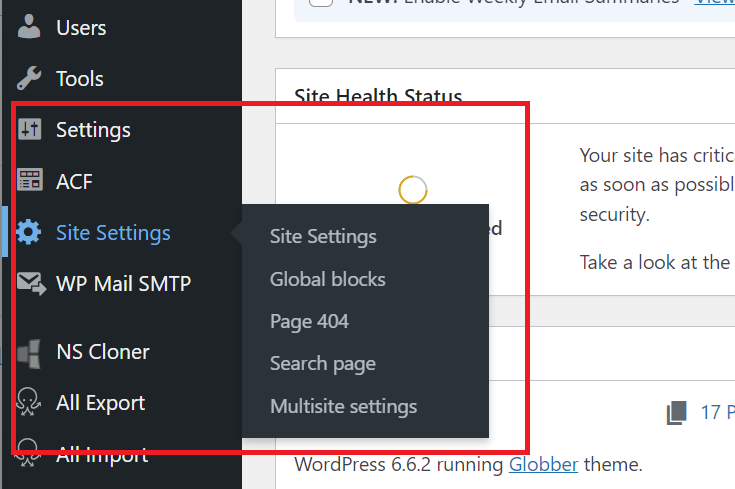
In WordPress, hover over Site Settings on the left-hand side. Click "Site Settings".
In the "General" tab, you can setup your Globber site's Terms & Conditions, Privacy Policy and Google map API key.
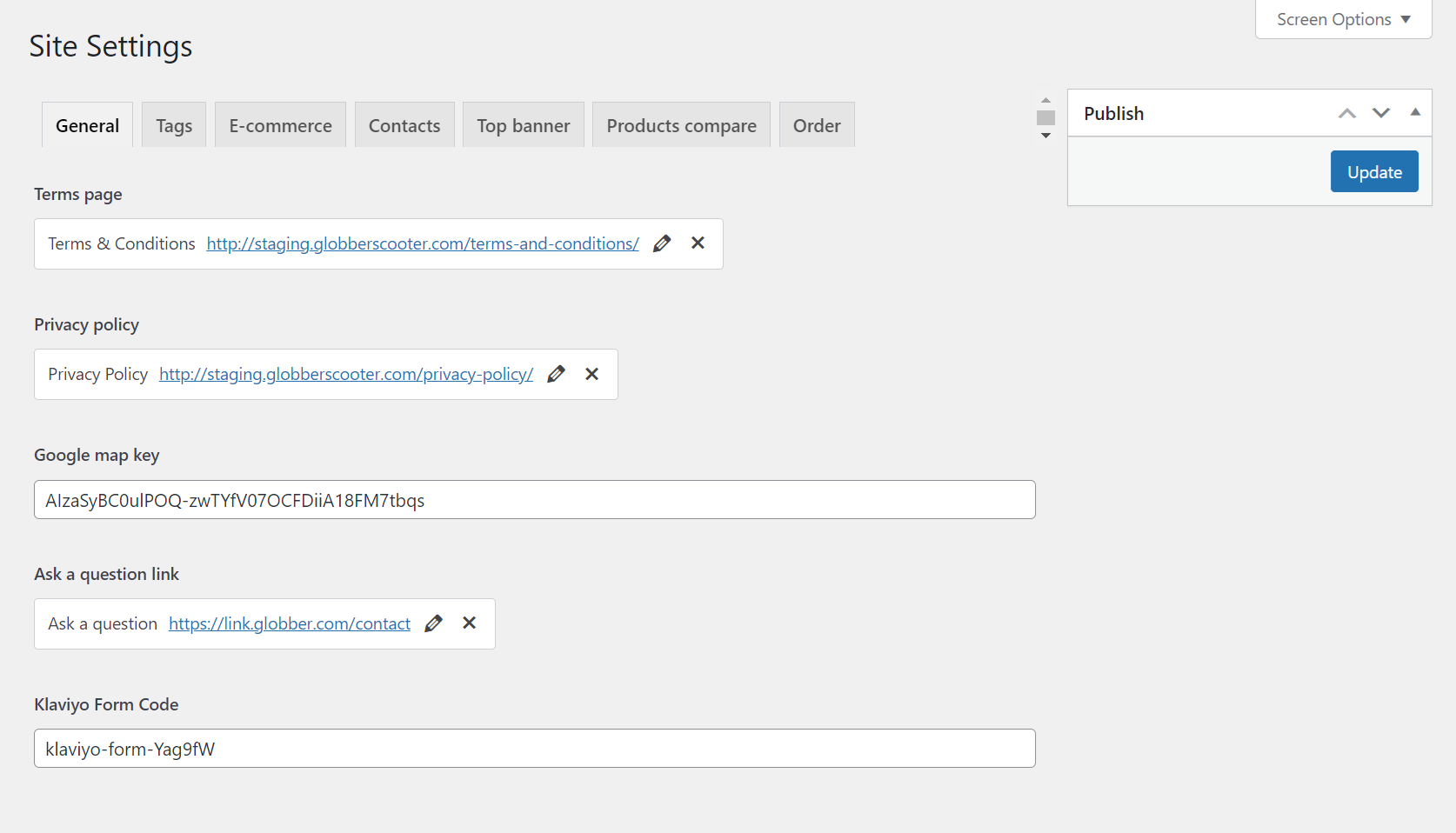
When updating your website's privacy policy, make sure to check your region's privacy laws, like the EU's GDPR. These laws explain how to handle user data and protect privacy. Following them helps you avoid problems and gain users' trust.
E-Commerce
If your Globber subsite is an E-commerce site, ensure that "Disable all purchase options" is switched off.
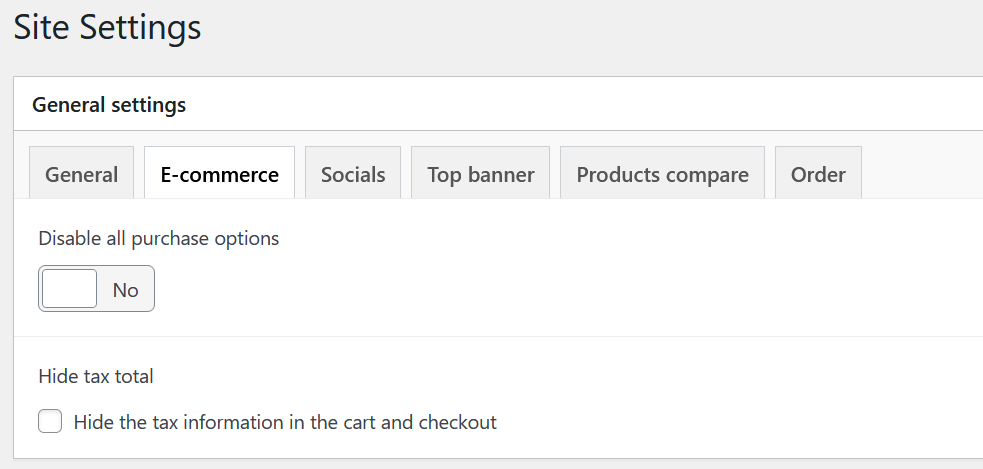
You have the option to hide tax information in the cart and checkout, if required by regulations.
You can also enable the Product Image Alt Banner in this tab.
Catalogue Mode
If your Globber subsite is a catalogue site, ensure "Disable all purchase options" is switched on.
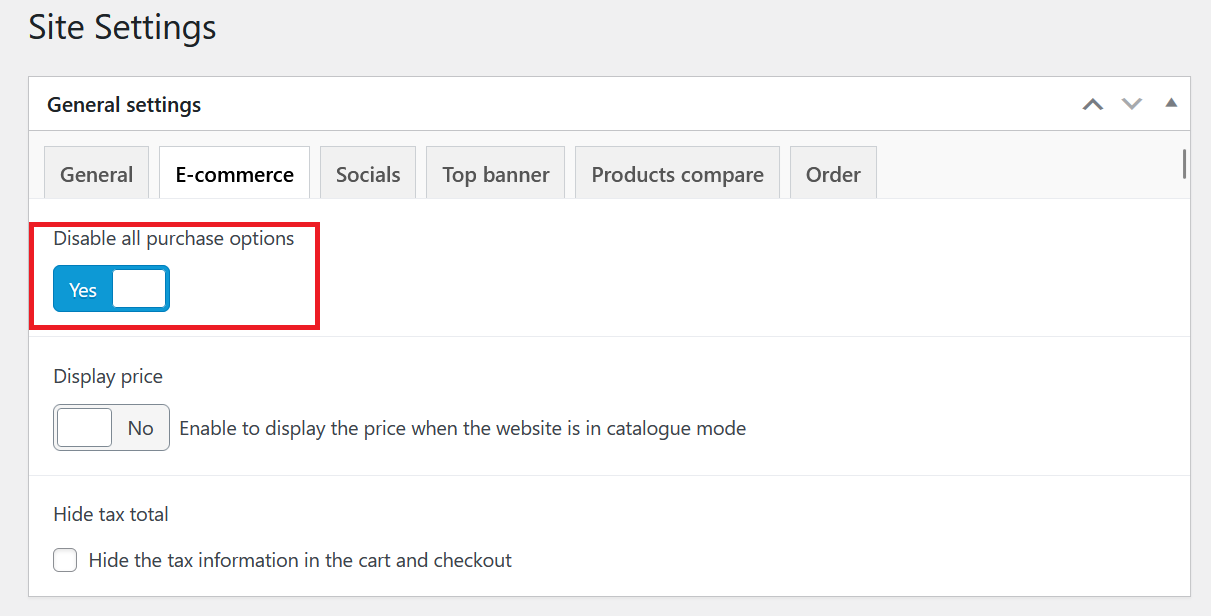
You have the option to display price when your website is in catalogue mode by activating Display price.
Top Banner
The top banner is a multi-slide carousel displayed at the top of your site. It supports multiple slides, animation controls, sticky positioning, and three visual styles to suit different messaging needs (promotional, informational, or urgency-driven).
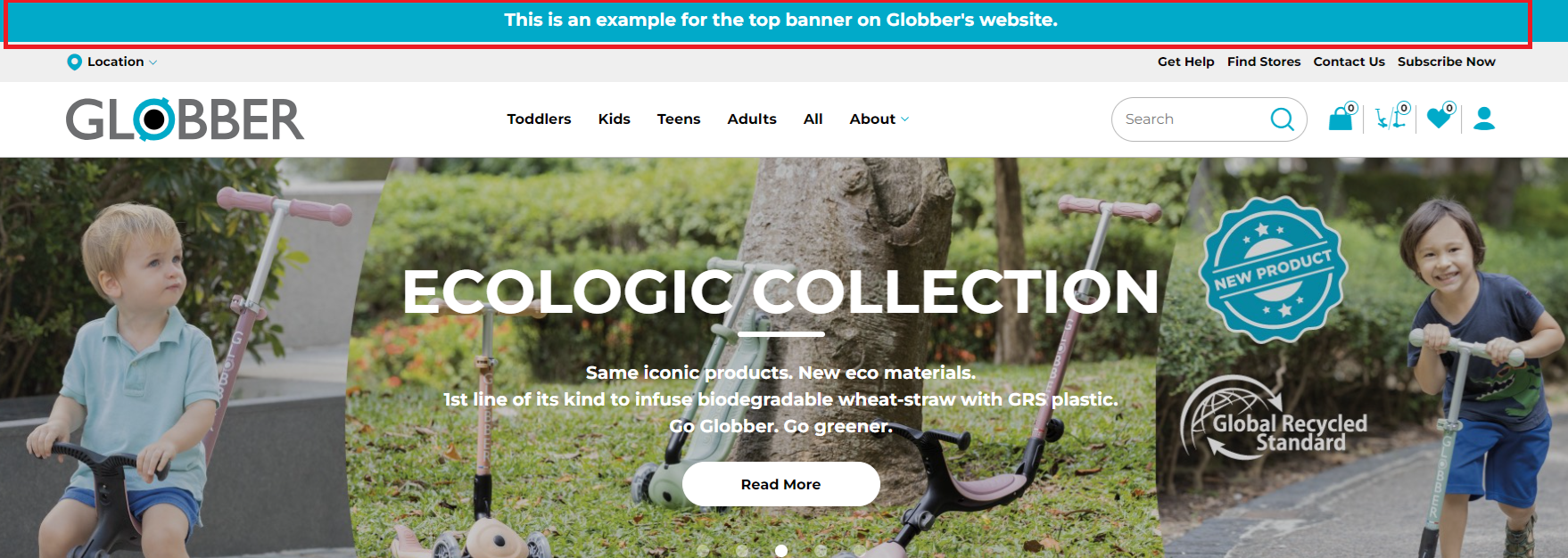
To access the Top Banner settings, hover over Site Settings in the WordPress left-hand menu and click Site Settings.
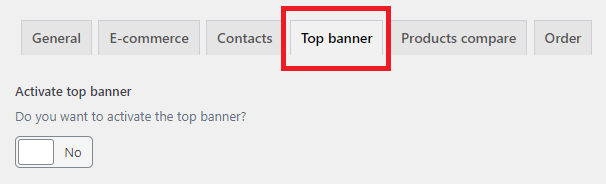
Click the Top Banner tab.
Banner Options
These global settings control how the banner behaves across all slides.
| Setting | Description |
|---|---|
| Activate top banner | Enables or disables the banner sitewide. |
| Sticky banner | When enabled, the banner stays pinned to the top of the screen as visitors scroll. When disabled, the banner scrolls away with the page. |
| Banner type | Sets the background color for the entire banner. Choose from Info (teal), Promo (purple), or Urgency (orange). |
| Animation speed (ms) | Controls how long (in milliseconds) each slide is displayed before transitioning to the next. For example, 4000 = 4 seconds per slide. |
| Pause on hover | When enabled, the carousel stops cycling when a visitor hovers over the banner. |
Managing Slides
The banner supports multiple slides in a repeater. Each slide is shown in sequence and loops back to the first.
To add a slide, click Add Row in the Slides section. To reorder slides, drag the rows by their handle.
Each slide has the following fields:
| Field | Description |
|---|---|
| Slide type | Choose Custom content to write free text, or Discount term to display a pre-defined discount label. |
| Content | The text displayed on this slide. Basic HTML is allowed (e.g., <strong>, <em>). |
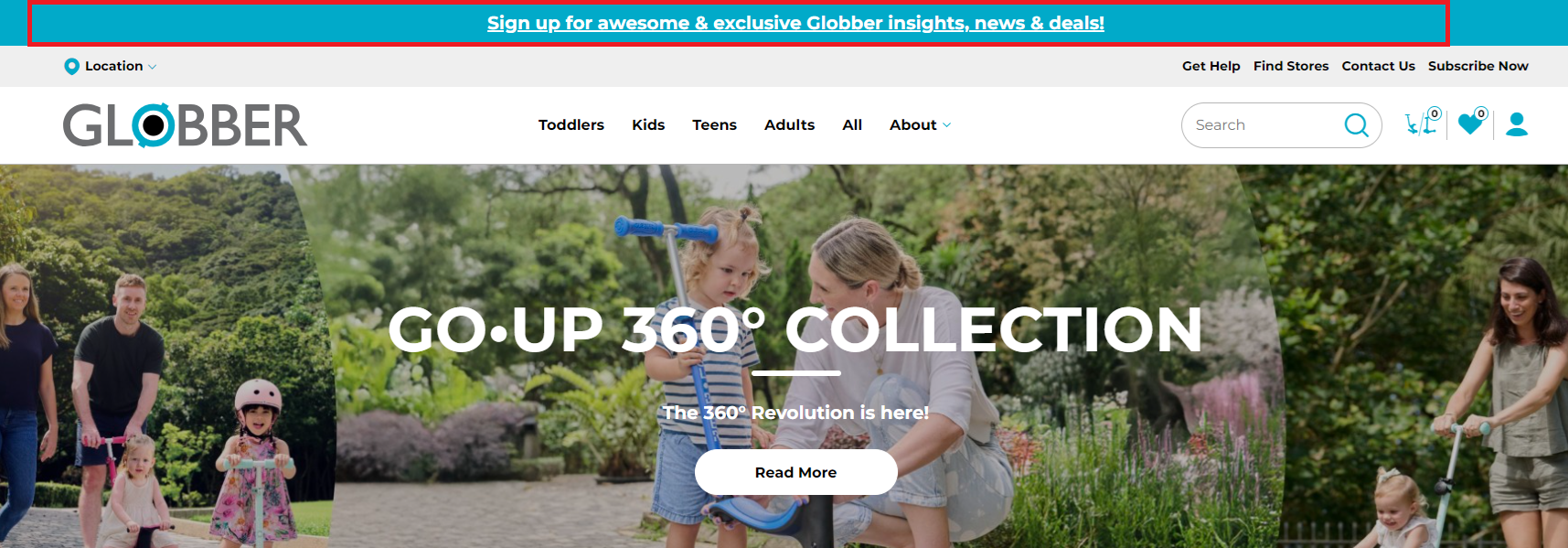
| CTA link | (Optional) A link that makes the entire slide clickable. Click Select Link, then search under Or link to existing content to find the destination page. Click Update to confirm. |
| Icon | (Optional) An icon displayed alongside the slide content. |
| Discount term | Visible only when Slide type is set to Discount term. Enter the discount text to display. |
Saving Changes
After configuring the banner and its slides, click Update in the Publish panel on the right-hand side.
If you only have one slide, the carousel animation is effectively disabled — the banner acts as a static bar.
This is what a banner with a CTA link looks like on the front end:
Socials
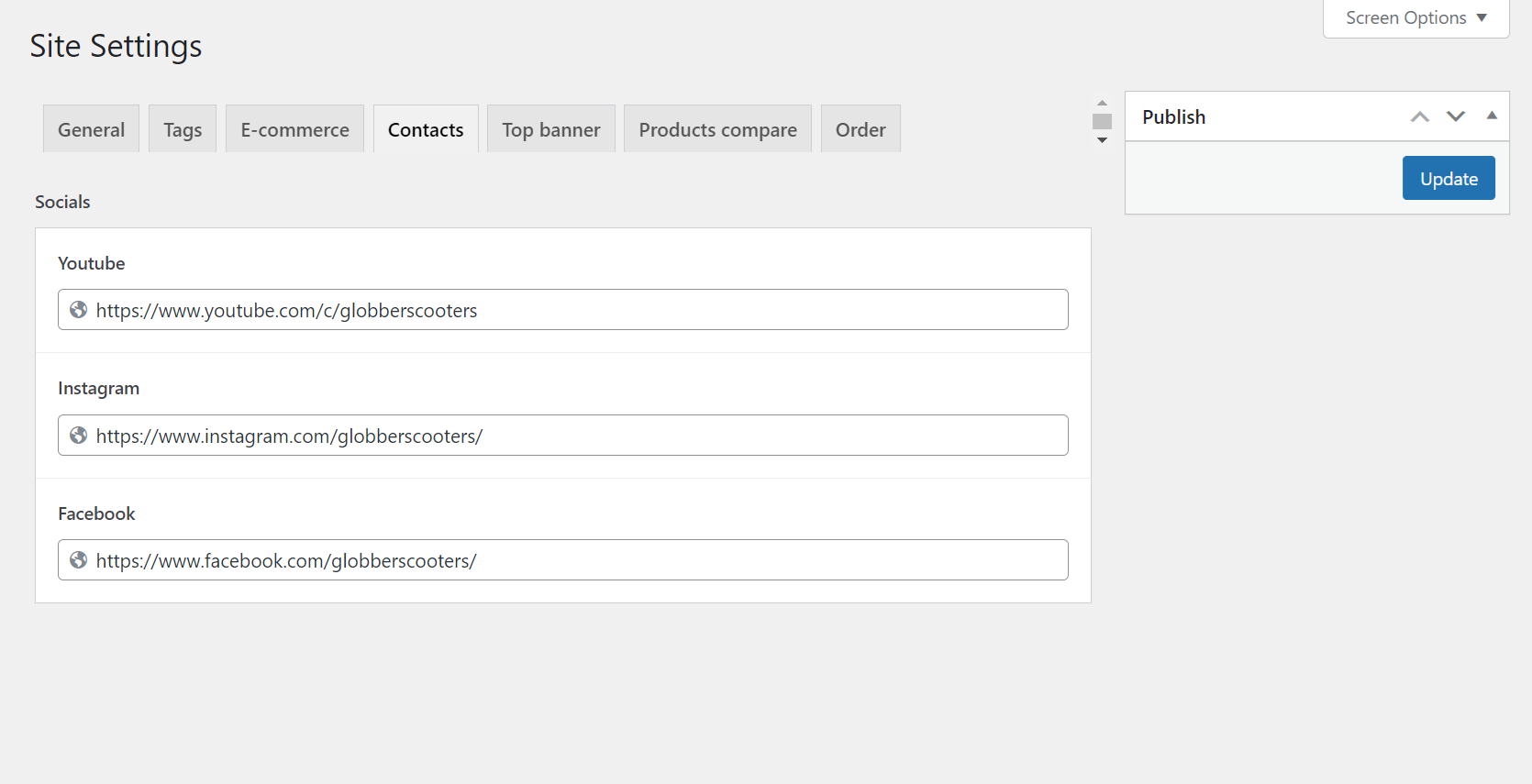
In the 'Contacts' tab, you can customize links to Globber's social media accounts, including YouTube, Instagram, and Facebook.
These links will update the social media footer of your Globber subsite.